 GrantKeeper
A grant deadline calendar in Outlook and Google Calendar
Deadlines that only live in a tracker get missed; deadlines in the calendar you open every morning don't. Here's how to set up a shared grant calendar in Google Calendar or Outlook, by hand or from GrantKeeper.
Option 1: build one by hand
This is free and works with any tracker, including a spreadsheet. To skip typing each event, list your deadlines (or paste them from your sheet) in the free grant deadline calendar generator and import the .ics file it makes into the calendar from step 1; it adds reminders 14 and 3 days before each date.
- Make a separate calendar called "Grant deadlines", so these dates don't get lost among meetings. In Google Calendar: Other calendars, +, Create new calendar. In Outlook: Add calendar, Create blank calendar.
- Share it with everyone who owns a deadline, your executive director, and anyone covering for them.
- Add each deadline as an all-day event on its due date. Name it so it reads on its own, for example "Interim report: Youth reading program (Example Foundation)".
- Put the details in the description: what the funder wants, where to submit it, and who owns it.
- Add a reminder well before the date. The default 10-minute alert is no use for a report; set one for 2 or 4 weeks ahead.
The weak spot is upkeep: when a date moves or a new award arrives, someone has to remember to change the calendar as well as the tracker.
Option 2: subscribe to a calendar from GrantKeeper
GrantKeeper gives your organization a private calendar link (an iCalendar feed). Subscribe to it once and every open deadline appears as an all-day event, named after the deadline and grant, with the funder and what's required in the description. Add a deadline or change a date in GrantKeeper and the calendar follows.
- Google Calendar: Other calendars, +, From URL, then paste the link from GrantKeeper's Settings.
- Outlook on the web or the new Outlook: Add calendar, Subscribe from web, then paste the link.
- Classic Outlook for Windows: Add Calendar, From Internet, then paste the link.
- Apple Calendar: File, New Calendar Subscription, then paste the link.
Calendar apps decide how often to refresh a subscribed calendar, and Google and Outlook can take several hours to pick up a change. Each person subscribes in their own calendar. Anyone with the link can see the deadlines, so keep it private; an owner can reset it in Settings if it leaks.
Option 3: connect Google Calendar directly
If you use Google Calendar, you can connect Google Calendar from GrantKeeper's Settings instead. GrantKeeper creates one separate "grant deadlines" calendar in your account and updates it within seconds of any change. It can only touch that calendar, never your other events.
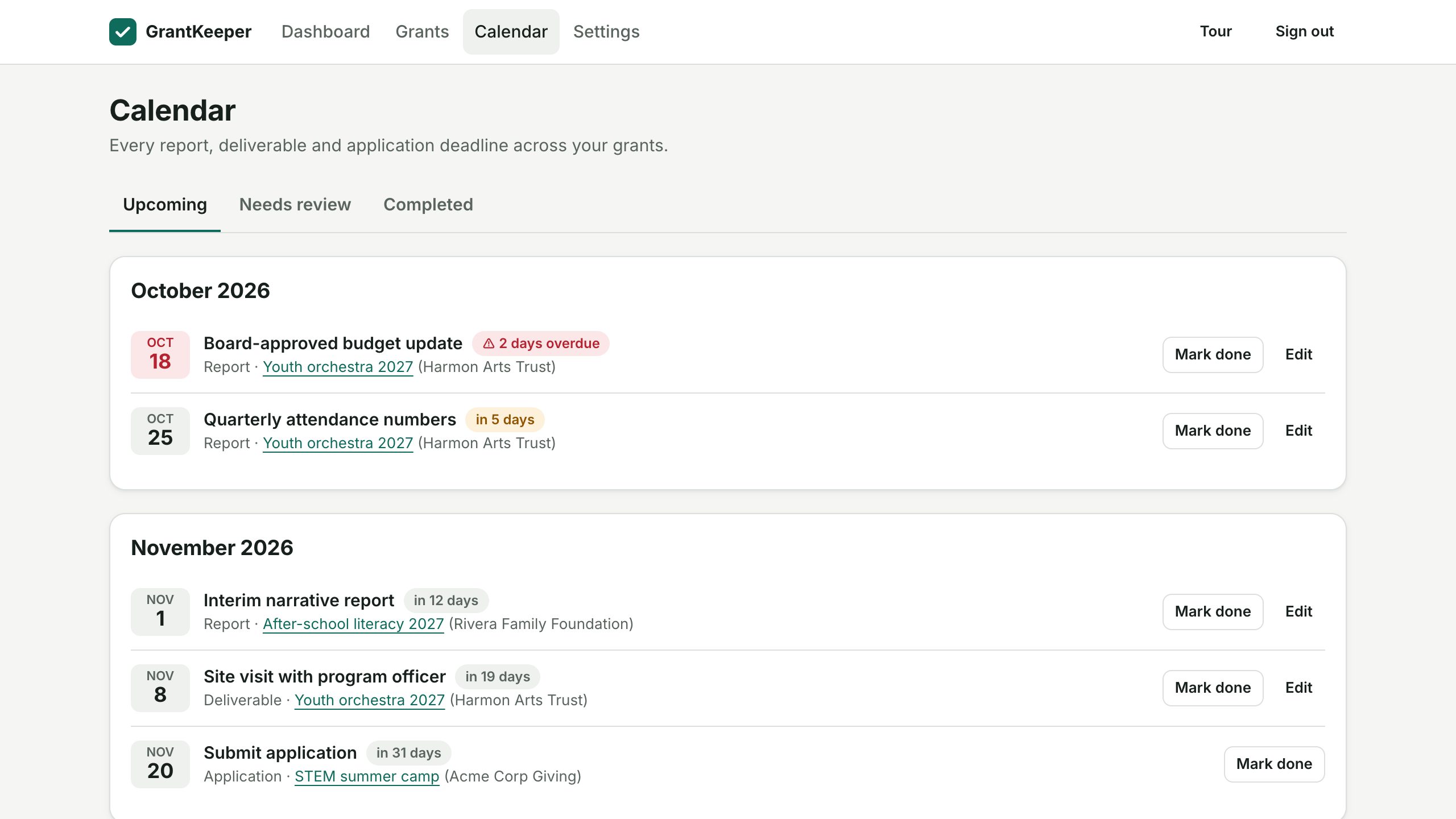
Calendars show dates; they don't chase anyone. GrantKeeper also emails the owner of each deadline 30, 14, 7 and 1 days before it's due, so the reminder reaches the person doing the work.